
What should you tell an AI employee before its first task?
“Could you send us a quote for the attached request?”
The email is short. The work behind the reply takes a little longer. Someone has to read the PDF, check the items and quantities, find the right prices for that customer, prepare a quote, and write the email to go with it.
I tried giving that job to an UpServe employee. There were three things to explain: the goal, the source files, and what “done” means. The goal was a quote for two items. The source files were a request for quotation, or RFQ, and a customer price list. Done meant a quotation PDF and an email draft, ready for me to review.
You can try this without connecting an ERP or a customer email account. Give one employee two files, review what comes back, and send the finished quote yourself.
The companies and transaction in this example are fictional. For this English edition, I prepared English sample files and ran the task again in a test account. The quotation image and video below are based on that English run.

Explain the goal, provide the source files, and say what you want back. AI-generated illustration.
Two files and a first request
If you haven’t hired an employee yet, open the hiring menu on Home and choose Hire a new employee. Your new hire will introduce themselves and ask what they’ll be working on. That’s a good moment to describe this task. The first employee guide shows the hiring steps.
I prepared rfq-014.pdf and price-list.csv. In this example, Gaon Precision wants a quote from Moa Industrial for nitrile gloves and packing tape. The RFQ contains the items, quantities, and requested delivery date. The price list contains the specifications, selling units, and prices for that customer.
In the menu beside the chat box, I chose Attach file, uploaded both files, and sent this request:
Use the attached RFQ and price list to prepare a quotation PDF for my review and an email draft for the customer. If an item or quantity unit is unclear, ask me first. The requested delivery date isn’t confirmed, so write “Delivery: to be agreed.” Show the results in this chat. Don’t send an email or write to an ERP.
Full request and follow-up messages · Sample RFQ PDF · Customer price list CSV
That’s a shortened version of the request I sent. The full version also includes the messages used to check and revise the result, so you can try the same files yourself.
An employee may ask to install a skill it needs for the job. In this run, it requested PDF Write to create the quotation. I read the explanation and approved it. I also confirmed its proposed name, Quote Desk, and the work it would be responsible for.
Does “20 gloves” mean 20 boxes?

A missing unit is easy to overlook when the arithmetic looks right. AI-generated illustration.
There was one deliberate gap in the RFQ: the glove quantity was 20, but its unit field was blank. The price list said KRW 12,500 per box of 100 gloves. Twenty individual gloves and twenty boxes would lead to very different quotes.
The employee went ahead with 20 boxes. It explained that the RFQ mentioned 100 gloves per box and that the price list sold them by the box. The arithmetic was right. The assumption about what the customer wanted was still unconfirmed.
I pointed that out:
The RFQ leaves the glove unit blank, but your first quote uses 20 boxes. The selling unit in the price list does not confirm the quantity unit the customer meant. Please check this again and ask me before finalizing the quote.
It acknowledged the assumption, put the calculation on hold, and asked whether I meant 20 boxes or 20 individual gloves.
For this example, the intended quantity was 20 boxes. I confirmed that and asked for the quotation number to be Q-20260927-014, with RFQ-20260927-014 kept as the original request’s reference.
I’d already asked it to raise unclear details before calculating. That instruction alone hadn’t been enough. I needed to check the basis of the calculation as well as the numbers.
Check the quote, then trim the email
The intended quantities were 20 boxes of gloves and 30 rolls of tape. At the prices in the sample file, the gloves come to KRW 250,000 and the tape to KRW 60,000. That gives a subtotal of KRW 310,000. Adding the sample’s 10% VAT, KRW 31,000, brings the total to KRW 341,000. The currency and tax rate belong to this fictional example.
The delivery wording matters too. October 7 is the date the customer asked for; it isn’t a promise that the supplier can deliver that day.
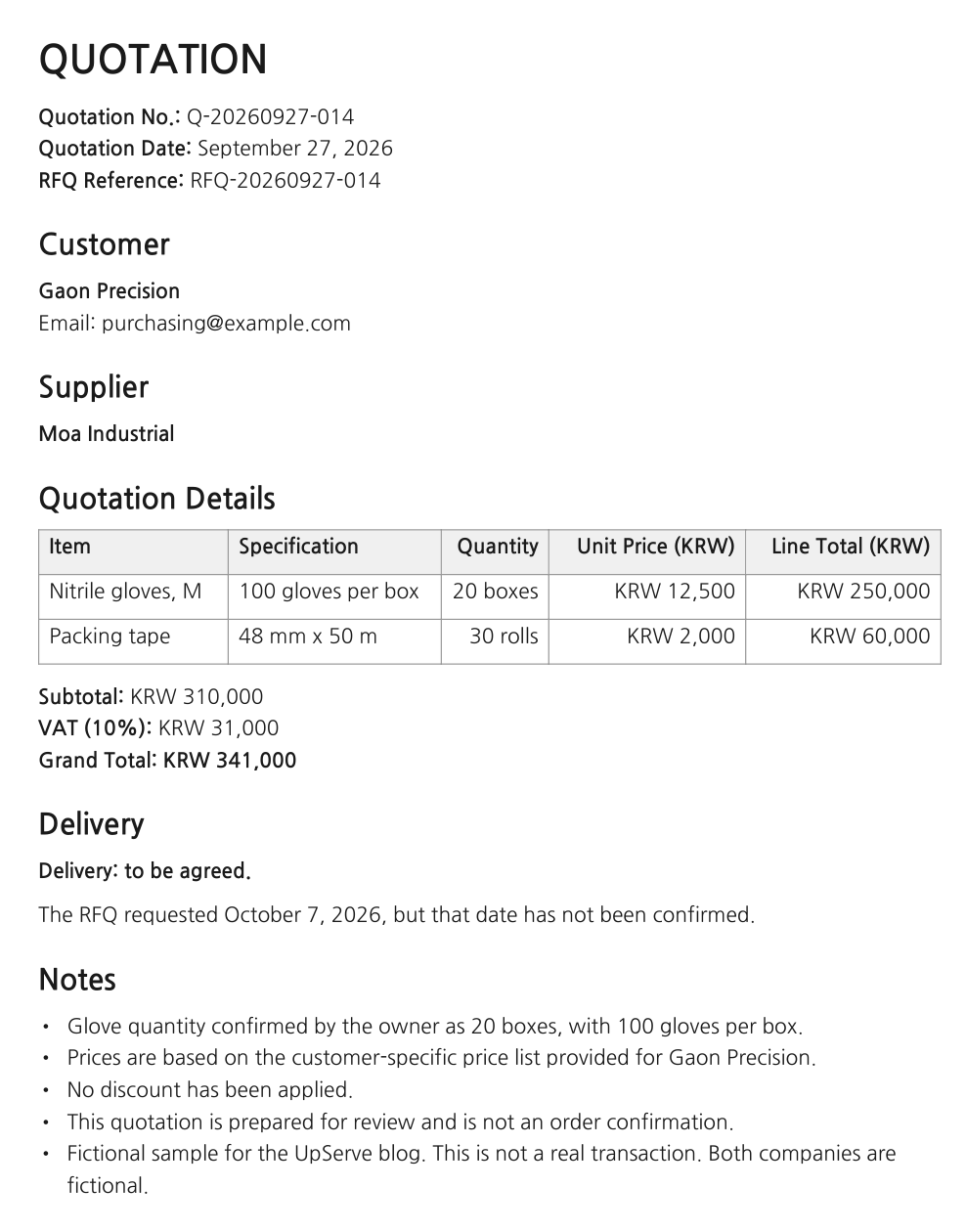
The quotation produced in the English test. Open the PDF.
The first email draft repeated the item list and all the amounts already shown in the PDF. Since the quote would be attached, I wanted a shorter note:
Please shorten the email body to two sentences. End with: “We will confirm whether delivery on October 7 is possible and let you know.” Keep the quotation PDF unchanged, and show only the draft. Do not send the email.
The revised body was exactly two sentences:
Please find attached our quotation Q-20260927-014 for the requested items, with a grand total of KRW 341,000 including 10% VAT. We will confirm whether delivery on October 7 is possible and let you know.
The quote stayed as it was; only the email changed. When part of a result isn’t quite right, you can point to it in the same conversation and ask for a specific revision.
A motion graphic that recreates the English test run from its conversation and quotation PDF, using fictional data. Waiting time has been shortened. The final ERP scene illustrates a possible next step; it does not show a live integration.
That was the end of this task. In real work, I would add the sender’s details, check the recipient and attachment, and send the email myself. No customer email was sent and no ERP record was created in this test.
When you’re ready to connect the rest

A possible workflow with company email and an ERP. AI-generated illustration, not an integration screen.
If you prepare quotes often, uploading the same kind of files each time will soon feel repetitive. That’s when an organization mailbox and our ERP become useful. The conversations from the first few jobs help you decide which prices to use, what needs your confirmation, and which records to keep.
Customers continue sending requests to your existing company email address. A conditional forwarding rule sends the relevant messages to the UpServe organization mailbox, with an employee assigned to handle them. The Mail tab is a company account feature: it appears in an organization space with inbound mail enabled.
Instead of receiving a price list file, the employee could look up the items and customer prices in our ERP, the system the company uses to manage its products, prices, and transactions. With the right connection and permissions in place, the job can extend to creating the quote, emailing the PDF to the customer, and recording the quote and sending details in the ERP.
That takes some setup. Organization mail intake, the assigned employee, and permission to email customer addresses all need to be in place. The ERP connection must also support reading the required data, saving quotations, and reading back what was saved. Afterward, email delivery and the ERP record should be checked separately. Sending a quote should never be treated as confirmation of an order.
I didn’t run that connected workflow in this test. For help connecting an internal ERP, contact UpServe.
You don’t need to set all of this up before your first task. Start with one RFQ and see whether the result is something you can use. Add the missing explanation as you go. Point to the sentence you’d like changed. Checking one unit and shortening one email is a useful place to begin.