
Working Side by Side with AI
“The opening shot runs a little long. Trim the beginning, and add the product name at the end.”
Imagine making a short promotional video. Once you watch the first cut, you find things you want to change. A scene could go. A subtitle feels awkward. Some details are easier to fix yourself than to explain.
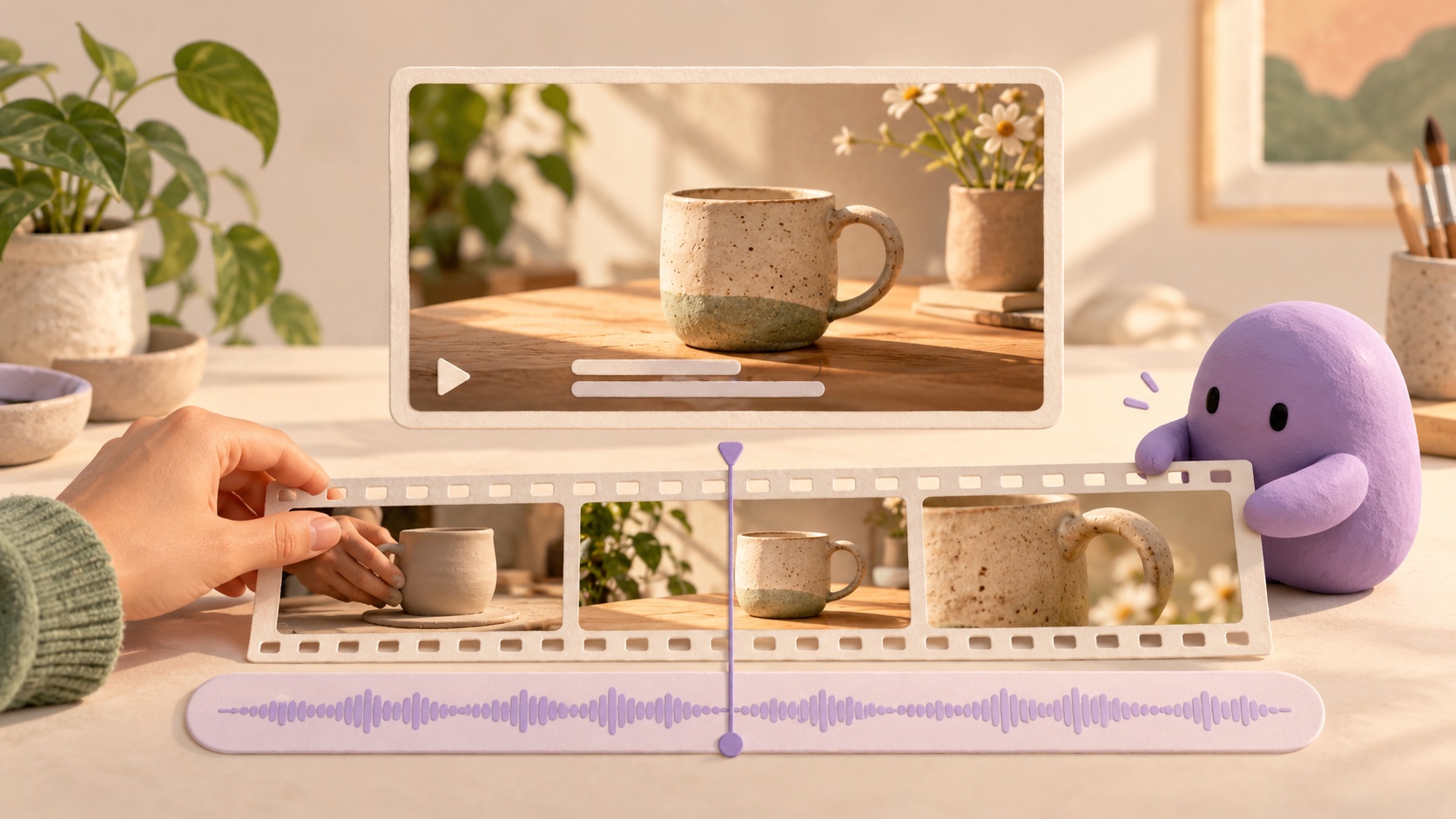
Now imagine having a video editor beside the conversation. You ask the AI for a change and play back the revised scene. You fix one subtitle yourself, then hand the rest of the editing back to the AI. You take turns working on the same edit.
That is the experience we are building with Agentic UI at UpServe. You and your AI work with the same material, and you can choose whichever feels easier in the moment: asking for a change or making it yourself.
One surprisingly tedious part of working with AI is explaining the context. Which file? Which item? What did you mean by “the second one”? When you have to copy information from the screen into the conversation, handing over the work becomes another job in itself.
We want the interface to carry some of that context. It can tell the AI which work you have open, what you selected, and the order in which items appear. In supported work screens, you can select an item and say, “Could you check this?” Moving to the chat box should not mean losing track of what you just selected.
Video production is a good example of where this connection matters.
“Make a short video introducing our new product” leads to several kinds of work: preparing scenes, arranging them, and adding subtitles and sound. You might provide footage you have shot or generate a scene you need. The video editor we are adding gives you a place to see those clips and the edit as they come together.
After watching the first cut, you might ask, “Shorten the second scene a little.” When the AI finishes, you check the change and adjust the subtitle size or position yourself. Being able to see and work on an intermediate version matters as much as receiving the finished file. It is hard to describe exactly how something should feel before you have seen it.
With automated Instagram publishing, the things you need to check are a little different.
Once the photos or video are ready, you might say, “Post this as a Reel on Friday afternoon, and include a caption about this week’s event.” You need to see the content, caption, and posting time together. If the caption is too long, you ask for a shorter version. If the date is wrong, you change it. After reviewing and scheduling the post, you also need to know whether it actually went live.
Handing over the posting does not mean you stop caring about what happens next. You still want to know whether something is a draft, scheduled, or published. If there is a problem, you need to know what needs attention. Keeping that status visible saves you from scrolling back through the conversation to ask, “So, did it go up?”

We are applying the same thinking to automated blog publishing.
Suppose you ask the AI to gather industry news each week and write a post for your company blog. As it researches and writes, you review the draft. Seeing the title and body laid out as an article helps you notice things that are harder to spot in a long chat response. The opening drags. An explanation is missing. A useful example arrives too late.
“The title sounds a bit stiff. Make it more conversational.”
“Shorten the product description, and move the practical example closer to the top.”
Those requests should update the same draft so you can read it again. Once the post is published, its link and publication status should remain available. Being able to look back at earlier posts while preparing the next one would also make each conversation feel less like starting over.

Videos, Instagram posts, and blog articles involve different work, but the way people move through them is similar. You hand something over, look at the result, make a few changes, and move on. That is the continuity we want the interface to provide.
The workspace needs to fit the work. Video production calls for a preview and editing tools. Social publishing needs images and captions. Running a blog needs drafts and publication records. UpServe puts these spaces together by combining and adapting a set of prepared interface components.
But you should not have to learn a new interface every time. Selecting something, opening it, making a change, and checking the result should stay familiar. The AI focuses on understanding your request and doing the work. The app handles basic behavior such as saving and moving between views.
When a person and an AI work on the same result, they also need to stay out of each other’s way. Collaboration breaks down if something you are typing suddenly disappears, or if the AI overwrites your changes using an older version. We are building in ways to take turns editing, check again when content has changed, and wait where a person’s approval is needed.
This is also why we want to show where the AI is working and what it is doing. You should not have to watch the entire process, but you should be able to check in. Seeing which material it is handling, what has changed, and whether anything needs your attention lets you step in when it matters.
The moments we want to make possible are ordinary ones: asking for a small change while watching a video, fixing a phrase in a post, or checking a blog draft before getting on with your day. We hope there will be less searching for files, copying content, and explaining something that was already right in front of you.
That is where we will find out whether handing work to AI has become easier. In the middle of a busy day, when you point to the screen and say, “Just change this bit,” how naturally can you keep going?